Starlink Obstruction: What It Means and How to Fix It
Obstruction is the most common fixable cause of Starlink dropouts, and it means something is physically blocking your dish's view of the sky. The fix is almost always to give the dish a clearer line to the satellites, by moving it, raising it, or clearing what's in the way. This guide explains what the obstruction figures mean and walks the fixes from easiest to hardest.
A small amount of obstruction is common and often harmless, though how much it matters depends on where it sits and what you're doing: video calls and gaming feel a blockage in a busy part of the sky far more than light browsing does. The thing that matters is not just the percentage, but where in the sky the blockage falls.
What the obstruction numbers mean
Starlink gives you two things: a percentage and a map.
The percentage is the share of the sky the dish needs that's blocked. At or near 0% is healthy. The number creeping up over weeks usually means something is growing or has moved into view.
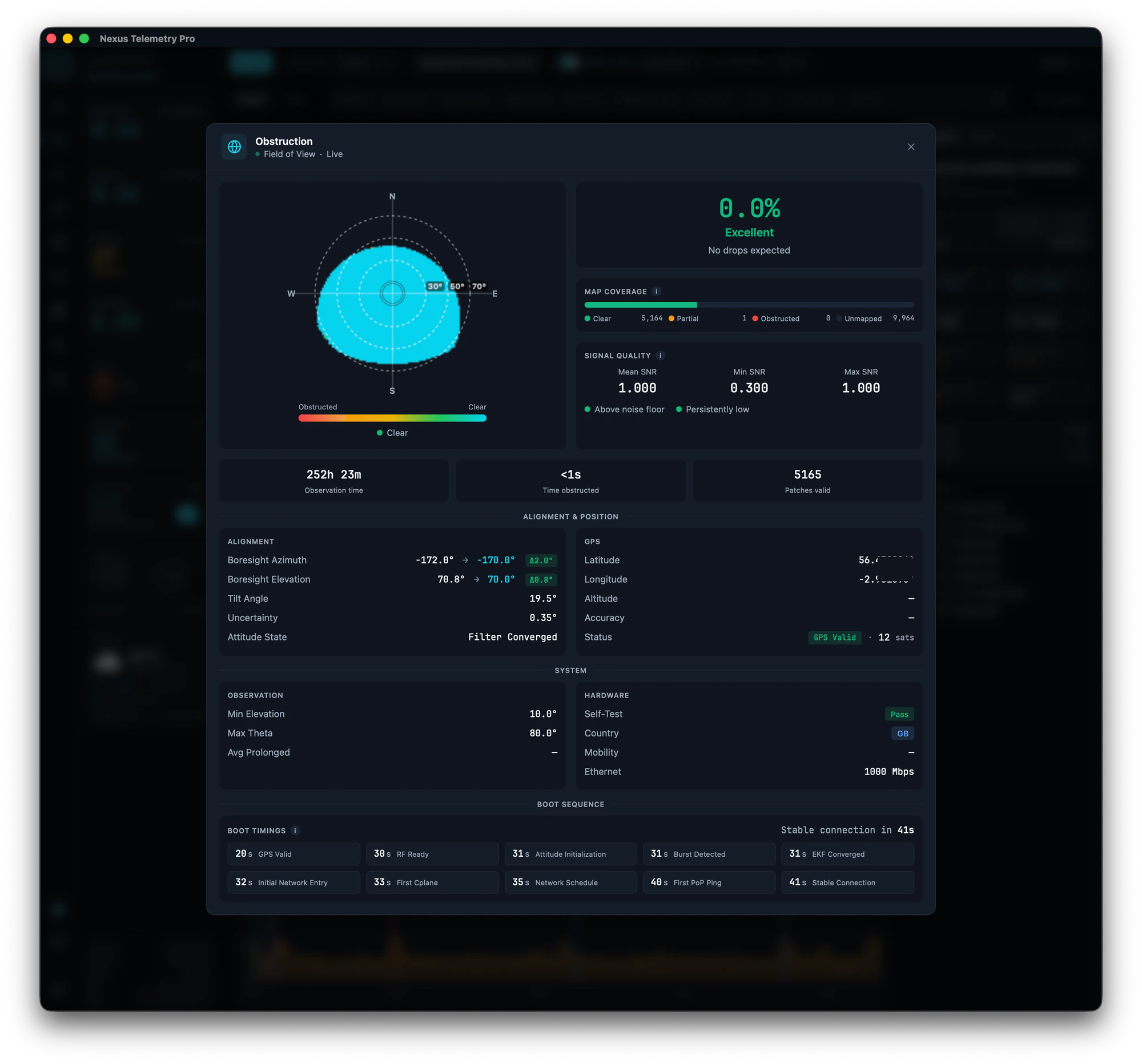
The sky map is the more useful of the two. It shows where the blockage is, not just how much. The dish has a wide field of view (a cone of about 110 degrees on the standard Gen 3 and Mini, 140 degrees on the flat High Performance model), and it needs clear sky across the part of that cone the satellites actually use, right down to a low angle near the horizon. A small percentage in a busy part of the sky (where satellites pass often) causes far more disruption than a larger percentage off in a corner the dish rarely uses. This is why two dishes with the same obstruction percentage can have very different experiences, and why the map matters more than the single number.
Which part of the sky has to be clear
Your dish doesn't use the whole sky equally. Most Starlink satellites sit in an orbital shell inclined at about 53 degrees, so the busy part of the sky, the part that must be clear, depends on your latitude:
In the mid-northern hemisphere, below about 53°N, the dish leans north. In the southern hemisphere it leans south. At mid latitudes the rule is simply that the dish leans away from the equator. At high northern latitudes the picture flips: from roughly 53°N the dish tends to favour south until around 60 to 63°N, and only above that does it swing back toward north as the higher-inclination shells take over.
This is also why people near the equator notice a band of sky their dish never seems to use on the obstruction map. The dish is steered away from the equator-facing arc, partly to avoid interfering with the geostationary satellites that sit in a fixed band over the equator (the Clarke Belt), so that strip shows as unused rather than blocked. It's normal, not a fault.
The practical upshot: don't rely on a compass rule of thumb. Let the app's map and alignment guidance tell you which way your dish actually favours, because it depends on your exact latitude and on Starlink's own load balancing.
How to fix it, easiest first
Check the map before you touch anything
Look at where the obstruction actually is. If it's a thin slice low on the horizon, it may be costing you very little. If it sits high and central, it's worth acting on. Knowing this saves you moving a dish that didn't need moving.
Raise the dish
The most common effective fix. Getting the dish above whatever is blocking it, a pole mount, a roof edge, a mast, often clears the problem entirely. Even a modest increase in height can lift the dish's view over a fence, a hedge, or a roofline.
Move the dish
If raising it isn't enough, relocating to a spot with a clearer view is the next step. The best position has the most open sky, particularly toward the part of the sky your dish favours (see above). Let the map and the app's alignment guidance decide the direction rather than a rule of thumb.
Clear the obstruction
If the blockage is vegetation you control, trimming branches can restore a clear view. Bear in mind trees grow back, so this is a recurring job, not a one-off, and monitoring the percentage over time tells you when it's creeping up again.
Re-check with a fresh map
If you've moved the dish, reset the obstruction map from the app first, so the rebuild starts from a clean slate rather than mixing in data from the old position. Then let the dish resurvey the sky: recent firmware draws a usable first map in about an hour, but don't judge a fix in the first few minutes. Watch the percentage and map over the following hours and days to be sure.
How monitoring helps
The official app shows a simplified obstruction view but doesn't track it over time, so you can't see the slow creep that signals a growing tree, or compare before and after a fix. Desktop monitoring records the percentage and map continuously, so you can watch a trend, confirm a fix worked, and catch a developing problem before it becomes dropouts. Nexus Telemetry charts obstruction over time and shows the full sky map.
How to monitor your Starlink →
The short version
Obstruction means something is blocking the dish's view of the sky. Check the map to see where the blockage is and whether it's even worth acting on, then work through the fixes easiest first: raise the dish, move it, or clear what's in the way. Give the dish time to rebuild its map after any change, and track the percentage over time so you catch a growing obstruction early.
See your own obstruction map and track it over time with a free trial of Nexus Telemetry.