Starlink Monitoring: The Complete Guide
Every Starlink dish already produces a detailed stream of telemetry over your local network: obstruction maps, latency to the satellite, drop rate, power draw, alignment, and more. The phone app shows you only a fraction of it. To monitor the rest, you read that local data with desktop software, and this guide explains what's worth watching, what each metric means, and how to see it.
Most of what follows is useful whatever software you run. Where a dedicated desktop tool makes a particular job easier, we point to how Nexus Telemetry handles it.
Why monitor Starlink at all?
If your connection works, why look closer? Three reasons come up again and again:
Something is wrong and the app won't tell you why. "Online" with occasional drops is the official app's entire vocabulary. It won't show you that your obstruction crept from 0.2% to 1.2% as a tree grew, or that your dish silently repositioned after a firmware update, or that latency to the satellite doubled at a particular time of day. The data exists; the app just doesn't surface it.
You depend on the connection. For anyone where downtime has a cost, whether that's remote workers, vessels, rural businesses, or installers signing off a site, "it's usually fine" isn't good enough. You want a record, alerts, and the ability to prove what happened and when.
You're curious. Starlink is a genuinely remarkable piece of engineering, and watching it work is its own reward: tracking which satellite you're likely talking to, seeing the dish re-aim, watching the obstruction map fill in over days.
The metrics that actually matter
Not all telemetry is equally useful. These are the numbers worth watching, and what they tell you.
Obstruction
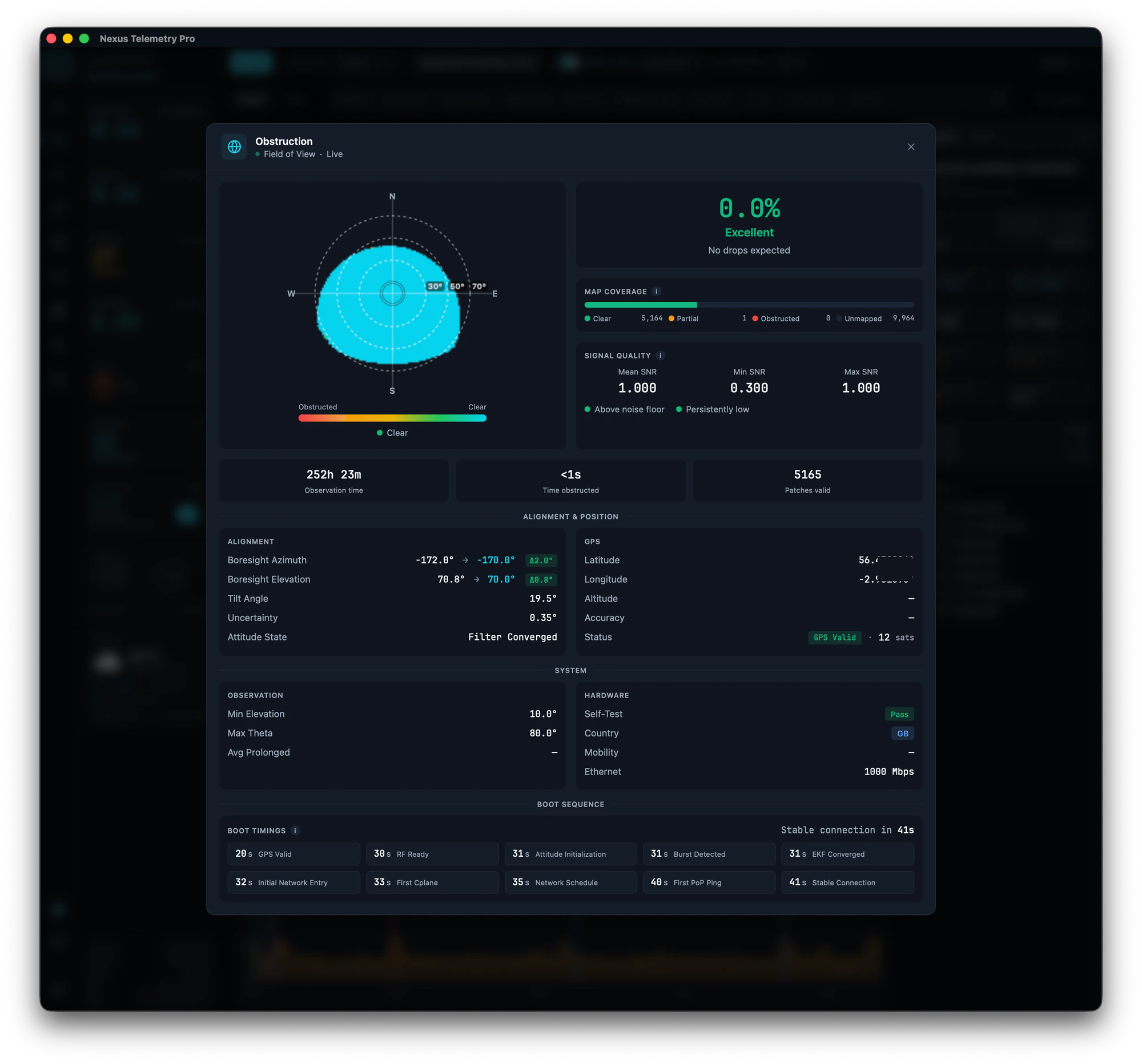
The single most important metric for connection quality. Your dish needs a clear view of the sky, and anything blocking it (trees, roof lines, poles) causes brief dropouts as satellites pass behind the obstruction. Starlink reports an obstruction percentage and builds a map of your sky over time.
A healthy install sits at or near 0%. The number creeping up over weeks usually means vegetation growth. The thing to understand is that even a small obstruction percentage can cause outsized disruption if it sits in a busy part of the sky, which is why the map matters more than the single figure.
How obstruction works, and how to fix it →
Latency
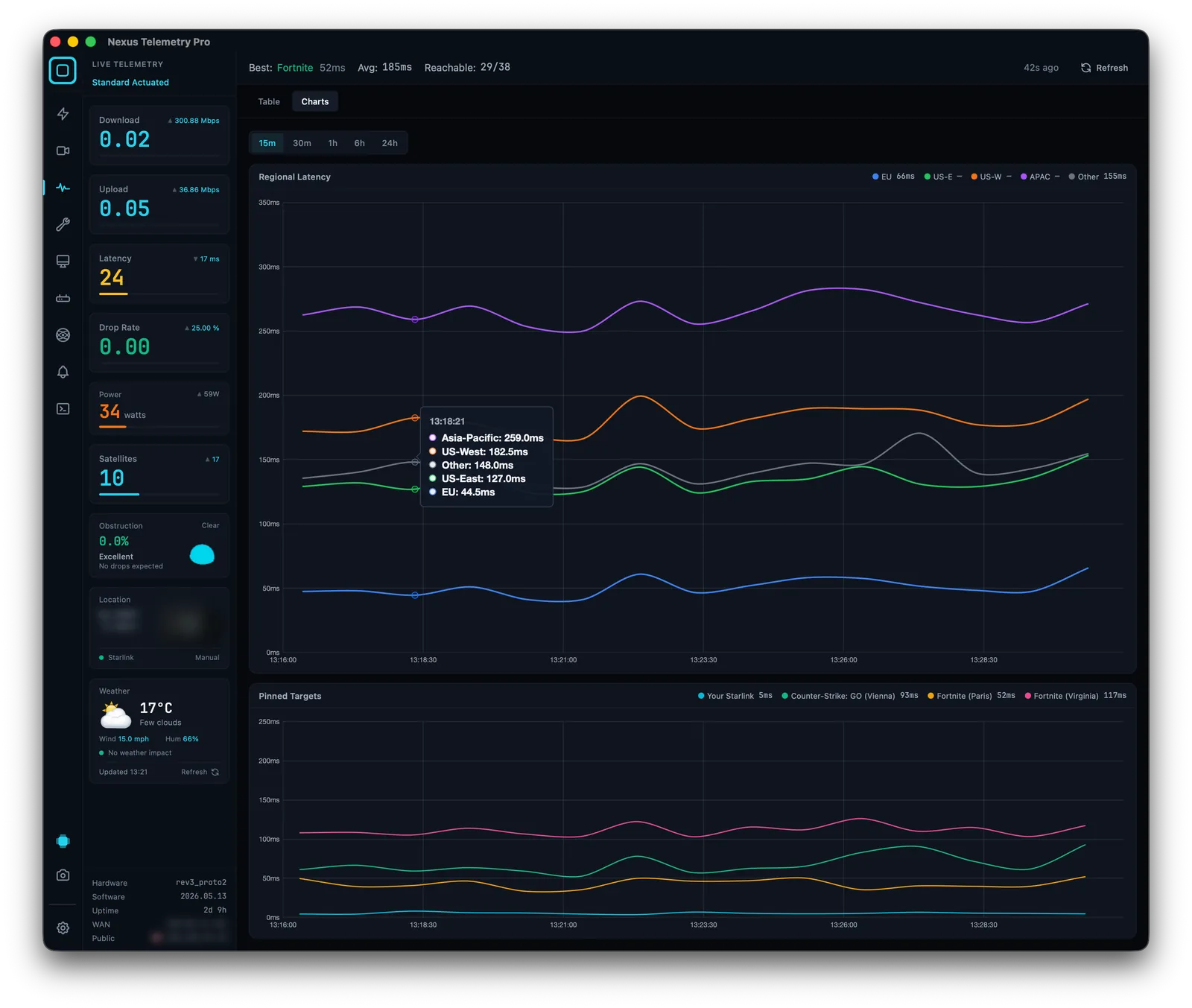
How long a packet takes to reach its destination and come back. For Starlink this has several components: your device to the dish, the dish to the satellite, the satellite to the ground station, and onward across the internet. Typical Starlink latency runs in the 25 to 50 ms range, often the low 30s. Spikes matter more than the average. A stable 40 ms is better for video calls and gaming than a jittery 25 ms average that periodically jumps to 200 ms.
What's a good Starlink ping, and how to read latency →
Drop rate
The share of pings to the Starlink point of presence that the dish reports as dropped, sampled every second. This is the metric that correlates most directly with the experience of "the internet went funny for a second." Brief drops are normal on Starlink as it hands off between satellites. A persistently elevated drop rate points to obstruction, a hardware problem, or congestion.
Why your Starlink keeps dropping →
Power consumption
Often overlooked, and genuinely useful if you're off-grid, on a vessel, or running from a battery or solar setup. Starlink dishes draw a variable amount of power depending on activity and how hard the dish is working to stay aligned. Knowing your real average draw, rather than the spec-sheet maximum, lets you size batteries and solar properly.
How much power does Starlink use →
Alignment and dish position
Your dish reports its tilt, azimuth, and elevation: the direction it's physically pointing. Most of the time this is set and forget. Worth knowing, though, is that actuated dishes (the motorised models) can physically re-aim themselves, and a firmware update occasionally moves one. This is rare, doesn't happen on the fixed non-actuated units at all, and usually has no effect on performance. We once caught a dish spin around 190° and lie almost flat after a firmware update, and the connection carried on unaffected, because the phased array simply re-acquired. If it ever does bother you, a reboot usually returns the dish to its intended position. Either way, if your performance changes for no obvious reason, the alignment figures are a sensible first place to look.
The time a dish silently repositioned →
Signal quality (SNR)
Signal-to-noise ratio: how cleanly the dish is hearing the satellite. Starlink has moved some of this behind the scenes over time, but where it's available, a healthy SNR above the noise floor is what you want, and a persistently low reading flags a problem worth investigating.
Which satellite you're connected to
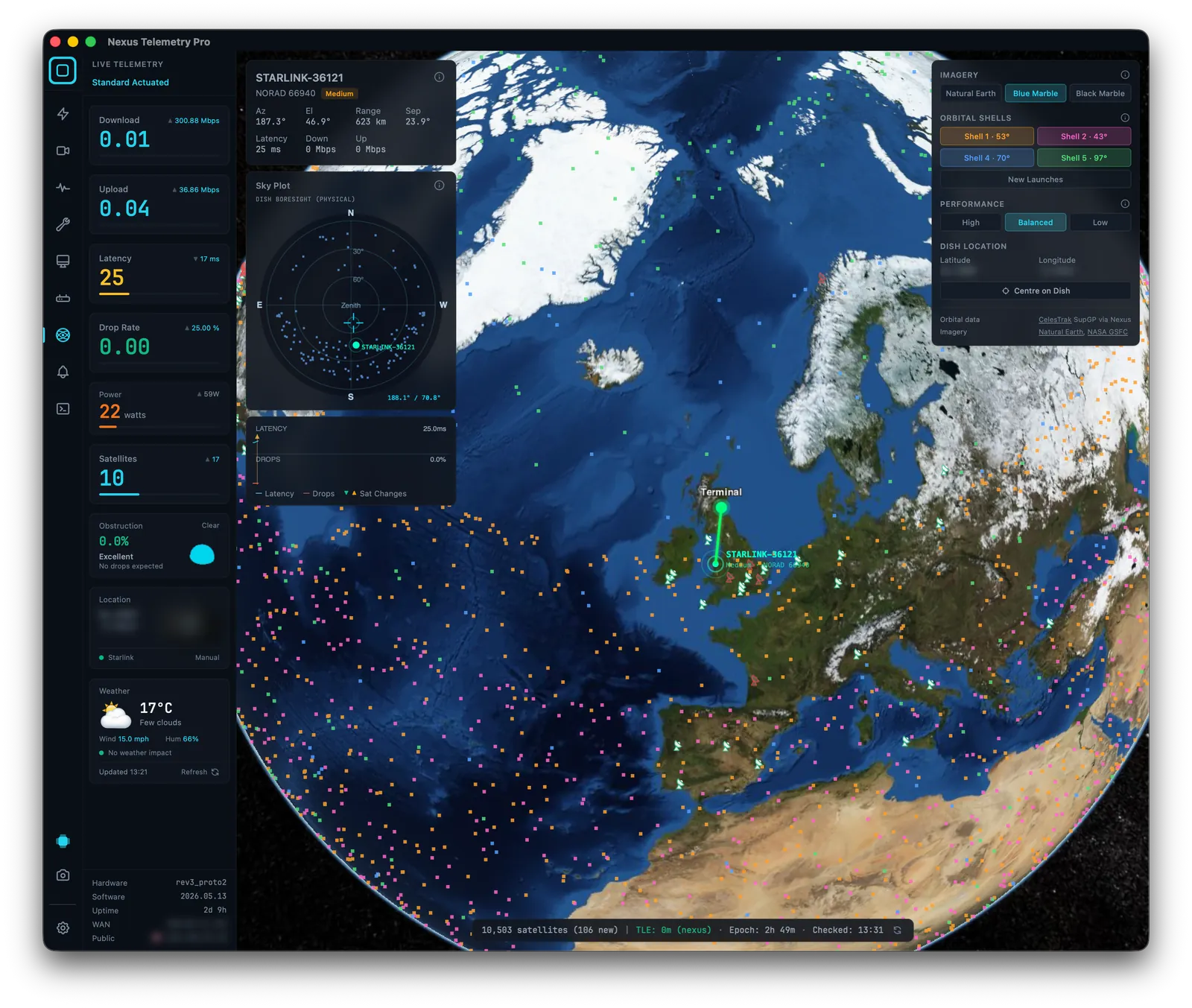
A natural follow-on question: which of the more than 10,000 satellites in the constellation is yours actually using? It turns out you can't confirm this on consumer hardware. The dish knows, but doesn't expose it. You can, however, make a geometric estimate from the dish's pointing direction and live orbital data. We wrote up exactly what's possible and what isn't.
Which Starlink satellite are you connected to? →
How to actually see this data
There are broadly three routes.
The official app. Free, on your phone, shows you the basics: status, a simplified obstruction view, a speed test. Fine for a quick check, but it doesn't record history, doesn't alert you, and hides most of the detail above.
Open-source command-line tools. Projects like starlink-grpc-tools let technically-minded users query the dish's local API directly. Powerful and free, but they assume you're comfortable on a command line, willing to assemble your own dashboards, and happy to maintain it yourself.
A friendlier alternative to starlink-grpc-tools →
A dedicated desktop app. This is the gap Nexus Telemetry fills: a native application for macOS, Windows, and Linux that reads the same local telemetry, records it, charts it, alerts on it, and presents it without requiring you to build anything. It runs entirely on your own machine, with no account and no cloud relay, and it was the first cross-platform desktop app built specifically for this.
Starlink on Mac · Windows · Linux
A note on location and GPS
Several of these features (your position on the map, local weather, satellite matching) depend on knowing where your dish is. Historically that came straight from the dish's GPS over the local API, but Starlink removed that from the local API on 20 May 2026, which affects a lot of monitoring setups and Home Assistant integrations. If your tool relied on dish GPS, you'll now need an alternative source: a USB GPS receiver, NMEA over the network, or simply setting a fixed location.
What the GPS removal means, and how to work around it →
Monitoring more than one dish
If you're responsible for several dishes, such as a vessel fleet managed from shore, a reseller's customer base, or multiple remote offices, single-dish monitoring doesn't scale. You need a fleet view: every dish's health on one screen, alerts when one degrades, usage across the estate. That's a different problem with a different tool.
How Nexus Telemetry Fleet handles multi-terminal monitoring →
A Starlink management platform for Enterprise accounts: Nexus Telemetry Enterprise →
Where to start
If you just want to see what your dish knows, download Nexus Telemetry and run the free trial. It'll show you everything above within a minute of connecting. If you'd rather understand a specific problem first, the troubleshooting guides linked throughout this page each take one issue and walk it through end to end.
Nexus Telemetry is built by Liquidbinary Ltd, the team behind one of the first Starlink Enterprise management platforms, in production across thousands of terminals from 2022 to 2025. More about the team →