Is There a Starlink App for Windows?
Nexus Telemetry is an independent desktop app for Starlink on Windows 11. It is signed, and it reads your dish's live telemetry over your local network. Starlink's own app is for phones and tablets only, so there is no official Windows version.
The phone app isn't your only window into the dish. This page explains what's possible on Windows, the options you've got (from free command-line tools to the native app), and what you actually get from each.
Why isn't there an official Windows app?
Starlink's app is designed for setup and quick checks: point it at the sky during install, run a speed test, see whether you're online. That's a phone job, so SpaceX built it for phones. They've shown no sign of building desktop software, and the basic status page the dish itself used to serve in a browser has largely been retired.
But the dish itself doesn't care what's asking. It exposes a detailed telemetry stream on your local network, the same data the phone app draws from, with more detail than the app surfaces in its normal view. Any application on your network can read it, including one running on your Windows PC.
What you can monitor from Windows
With the right software, your PC can show you everything the dish reports in real time:
- Obstruction: the live percentage and the full sky map, built up over time
- Latency, download, upload, and drop rate: charted continuously, not just a one-off speed test
- Power consumption: real average draw, useful for off-grid and marine setups
- Dish alignment: tilt, azimuth, elevation, and any changes to them
- Connection health and outage history: a recorded log, not a momentary snapshot
- The likely satellite you're connected to: inferred from the dish's pointing direction and live orbital data
None of this requires a Starlink account, a login, or any cloud service. It all happens locally between your PC and the dish. One exception worth knowing: in May 2026 Starlink removed dish GPS from the local API for most service plans, later restoring it for Priority plans only, so location on consumer plans now needs an alternative source. (What the GPS removal means, and how to work around it →)
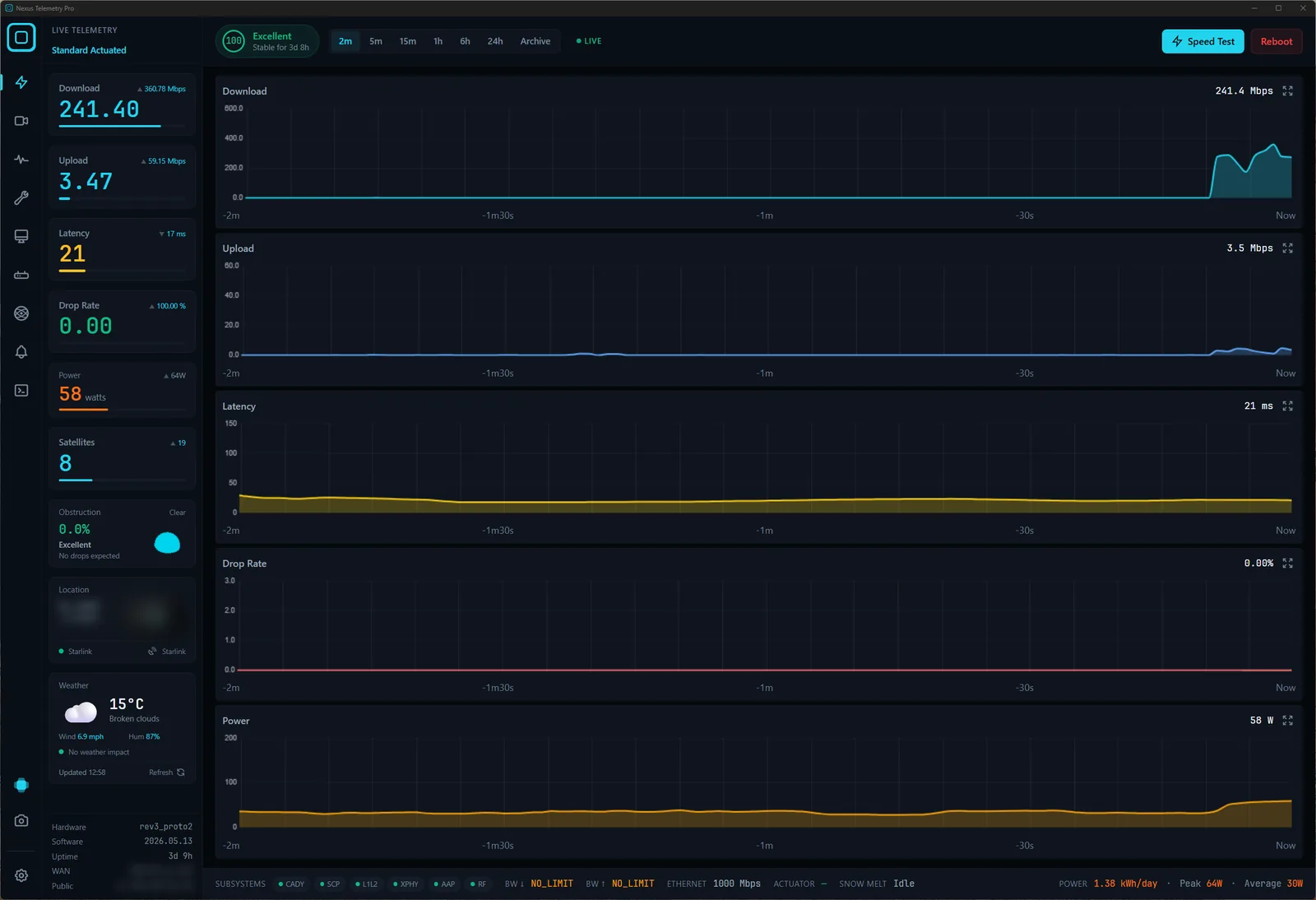
The options for Windows users
Run command-line tools. Open-source projects like starlink-grpc-tools will query the dish from a terminal, and they run on Windows. If you're comfortable on the command line and want to build your own dashboards, this is a capable free route, but it's a project, not an app.
Use Nexus Telemetry. This is the native option: a proper Windows application, signed and built for Windows 11, that connects to your dish, reads the telemetry, and presents all of the above in real time, with recording, charts, and alerts built in. No setup beyond launching it on the same network as your Starlink. It was the first cross-platform desktop app built for exactly this, and the same app runs on Mac and Linux too.
Installing on Windows
1. Download. On the download page, choose Windows. The installer is a single file, Nexus Telemetry Pro_<version>_x64-setup.exe for the Pro edition, and it needs 64-bit Windows 11.
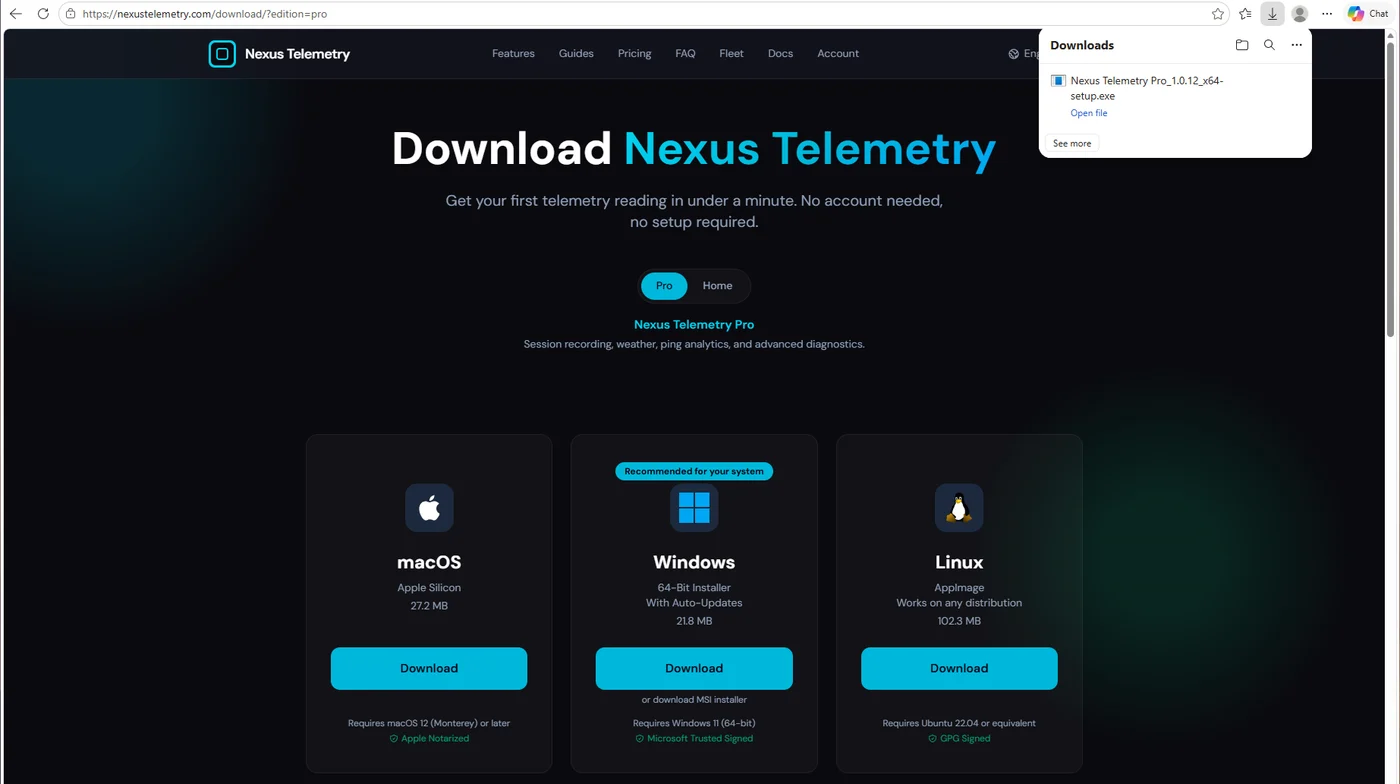
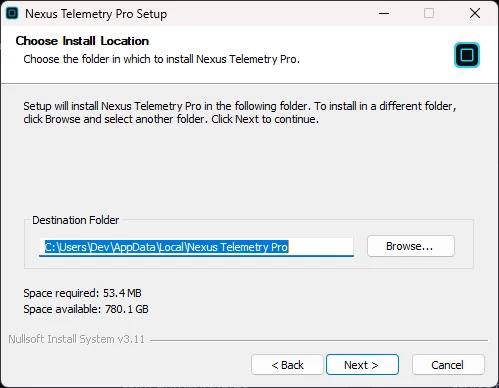
2. Run the installer. Open the file. The installer is signed with Microsoft Trusted Signing, so Windows runs it without a SmartScreen warning. It installs for your Windows account only, in your user folder, so it does not ask for an administrator password.
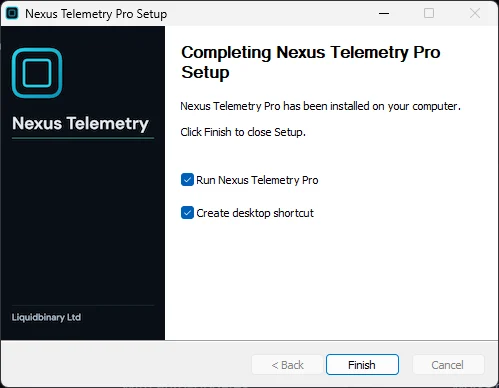
3. Finish. Leave "Run Nexus Telemetry Pro" ticked and click Finish. The installer also adds a desktop shortcut unless you untick it.
4. First launch. With your PC on the same network as your Starlink, the app finds the dish at 192.168.100.1 by itself and shows satellites, latency, obstruction and power within seconds. Click Enter Dashboard for the full view.
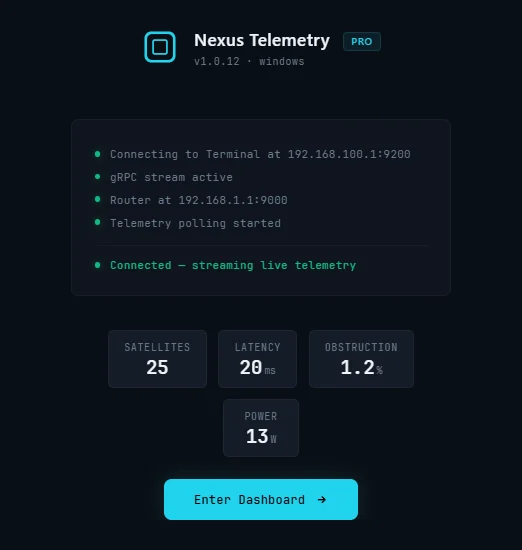
For company rollouts, the download page also offers an MSI installer.
There's a free trial, so you can see your own dish's real data before deciding. If you've ever wondered what the phone app isn't telling you, this is the quickest way to find out.
A note on what the phone app hides
It's worth seeing this in action. The phone app will show a green status while your obstruction quietly climbs from near zero as a tree grows into the dish's view, costing you dropped packets with no explanation attached. Desktop monitoring charts that creep over weeks, so you catch it before it turns into daily dropouts. That's the difference between a status light and actual monitoring: not drama, just visibility into what your dish is really doing.